Multi-ROI Pop-Up Menu
A pop-up menu is available that provides options for exporting, importing, and further processing multi-ROIs.
| Description | |
|---|---|
|
Crop |
Opens the Dataset Cropper panel. In this panel you can crop multi-ROIs to the clip box defined with the Clip box tool (see Cropping Datasets). NOTE After cropping a multi-ROI, it is usually best to remove empty labels. It may also be necessary to re-analyze the multi-ROI after cropping. |
|
Sample |
Opens the Dataset Sampler panel. In this panel you can modify image spacing by upsampling or downsampling (see Sampling Datasets). |
|
Invert |
Opens the Dataset Inverter panel. In this panel you can invert the labeled voxels within a multi-ROI (see Inverting Datasets). |
|
Dataset Properties |
Opens the Dataset Properties panel. The basic and advanced properties related to a multi-ROI can be viewed and modified here (see Dataset Properties). |
|
Measurement Inspector |
Opens the Measurement Inspection panel, in which you can plot statistical properties on a histogram and highlight selections in 2D and 3D views (see Using the Measurement Inspector). |
|
Export as ORSObject |
Exports the multi-ROI an ORS Object File (*.ORSObject extension). See Exporting Objects. ORS files are proprietary binary formatted files in which data is written sequentially and XML (Extensible Markup Language) is appended after the binary data. Scalar information contained in the file will be conserved whenever multi-ROIs are exported in this format. |
|
Export Measurements Table |
Lets you export data in the multi-labeled ROI in the CSV file format. |
|
Execute Macro |
Provides a shortcut for selecting macros that can be executed for multi-ROIs. NOTE The shortcut for macros only shows those for which the selection matches the first step requirements. |
|
Delete a Scalar Value Slot |
Lets you delete selected measurements from multi-ROIs. |
|
Copy Scalar Values From |
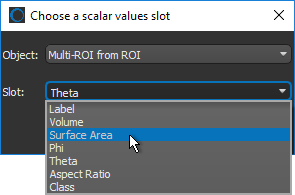
Lets you copy selected measurements contained within a multi-ROI to another multi-ROI. You can choose the multi-ROI that includes the scalar values you want to copy to the selected multi-ROI in the Choose a scalar value dialog.
|
|
Copy |
Creates a copy of the selected multi-ROI. |
|
Analysis |
Performs a statistical analysis of the selected parameters and opens the Object Analysis dialog, in which you can further analyze the multi-ROI and add additional parameters (see Analyzing Multi-ROIs). |
|
Derive New from Current Display |
Allows you to save reformations, such as oblique and double-obliques, that were applied with the Walk tool or by other methods. The result is a new multi-ROI formatted in the current space (see Creating Oblique Views). |
|
Align with Current View |
Automatically rotates the selected multi-ROI(s) so that the selected axis is aligned to the Z-axis of the world coordinate system. |
|
Align Centroid With |
Automatically aligns the centroid of the selected region of interest with the centroid of another object. Applicable objects include volumetric image data, regions of interest, multi-ROIs, and meshes. Reference objects can be selected in the Choose the object to align with dialog. |
|
Apply Transformation From |
Automatically applies transformations, such as translations and rotations, that were applied to a reference object to the selected multi-ROI. You should note that only objects that were previously transformed will be available as a reference in the Choose an object dialog. |
|
Compute Watershed |
Computes a Watershed segmentation using the labeled objects in the multi-ROI as the seed points. |
|
New Greyscale Image from Multi-ROI |
Creates a dataset in which each object in the multi-ROI is assigned a different value. If the multi-ROI contains 1,000 objects, then the resulting dataset will have 1,000 values with each value corresponding to a distinct object. |
|
Create Mesh |
Creates a mesh file in which the scalar values of the multi-ROI are retained. |
|
New ROI |
Creates an ROI that consolidates all distinct (labeled) objects in the multi-ROI into a new region of interest. |
|
Remove Empty Labels |
Removes all labels that do not contain any data. This can occur after resampling the shape of a multi-ROI or after objects have been removed in the Object Analysis panel. |
|
Crop to Bounding Box |
Automatically crops the multi-ROI to the bounding box that encapsulates the labeled voxels. |
|
Resample Geometry |
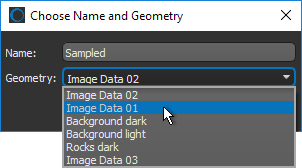
Copies the intersected values of the selected object(s) into the geometry (or shape) of another object to create a new dataset. Might be necessary if you need to extract statistics from an ROI or multi-ROI, such as the minimum, maximum, or mean values of corresponding image data (see Statistical Properties), or intend to compute other measures that require consistent shapes.
|

 LEARNING LINKS

